

The Claude Code Trap
A Senior PM in our last cohort told me this:
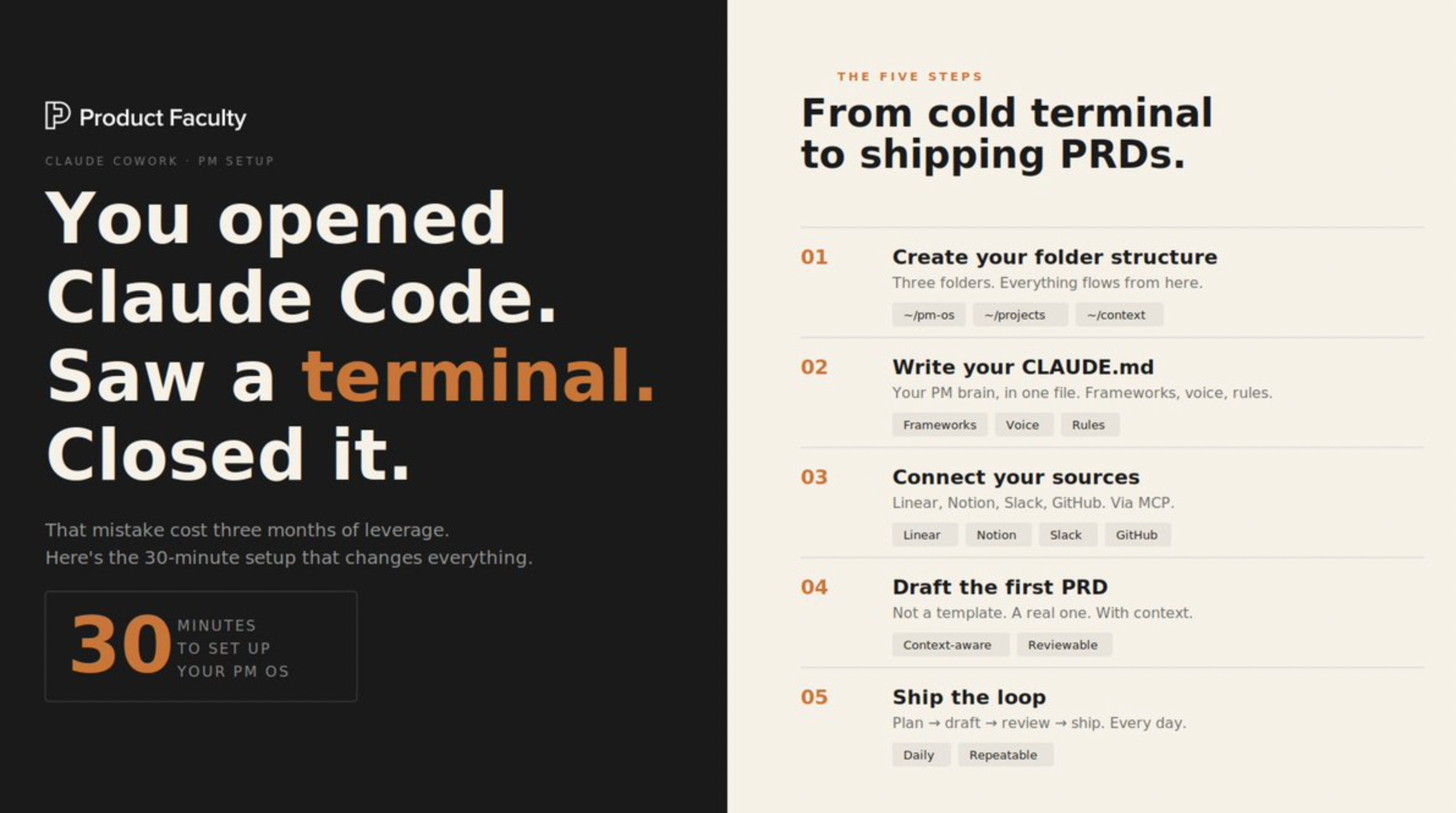
“I opened Claude Code in January. Saw a blinking terminal. Closed it.”
That 5-second hesitation cost him three months of leverage.
He’s not alone. Across the 3,000+ PMs we’ve trained at Product Faculty, the pattern is identical.
Smart, senior people open these tools, feel like they’ve wandered into an engineering trap, and bounce.
But Claude Cowork is different.
It’s the same Claude intelligence, the same file access, the same memory; wrapped in an interface that actually makes sense for product people.
No terminal. No commands. Just a desktop app that reads your files, remembers your context, and works autonomously while you do something else.
I spent 20 hours building a real PM setup inside Cowork.
This is what I found (and the best practises):
What Cowork Actually Is (Not What You Think)
Cowork is not Claude chat with a nicer interface.
It’s a fundamentally different mode: Claude gets persistent access to your files, remembers context across sessions, runs multi-step tasks autonomously, and connects to your actual tools — Linear, Notion, Slack, Gmail, Google Calendar.
The difference in practice: Cowork reads your about-me.md, your company context file, your PRD templates, and carries all of it into every task you run.
One note on usage: Cowork tasks consume more of your usage allocation than regular chat, because multi-step agentic tasks are compute-intensive. The tradeoff is that you’re getting polished, finished work... not a response you still have to act on. Batch related work into single sessions to get the most out of your plan.
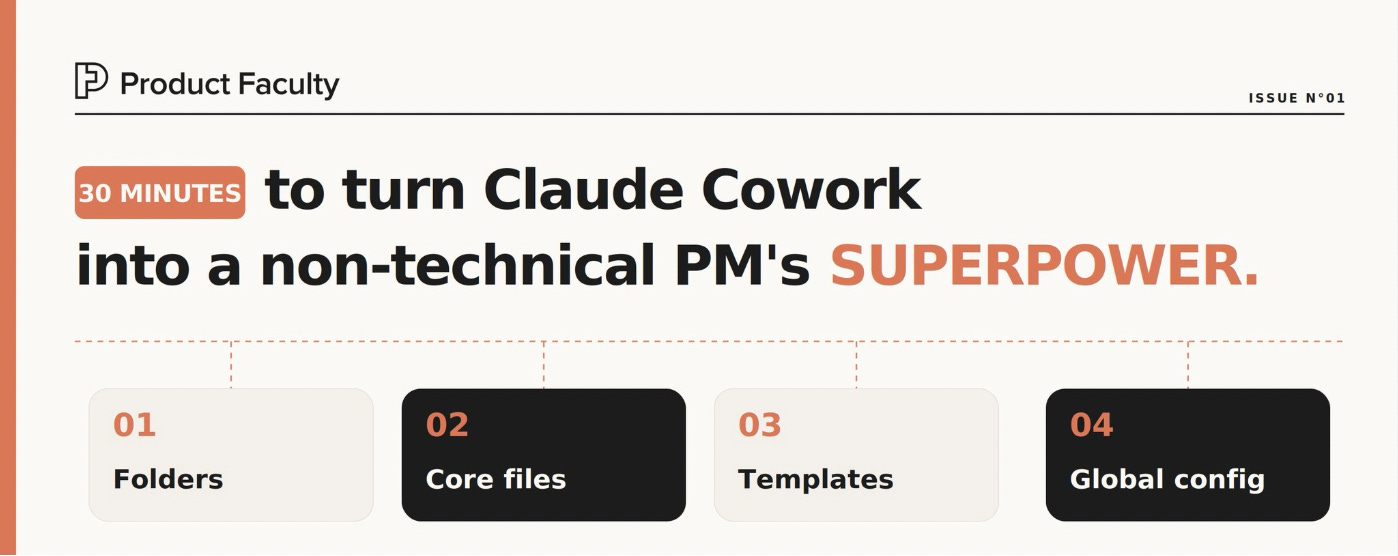
The 30-Minute PM Setup
This is the only section where you actually do work. After this, Cowork does the work.
Step 1: Create Your PM Cowork Folder
Open Finder. Create a folder called PM Cowork: your Documents folder, your Desktop, wherever you’ll remember it.
Inside it, create three subfolders:
PM Cowork/
├── ABOUT ME/
├── OUTPUTS/
└── TEMPLATES/
That’s it. Three folders. Everything else flows from this.
Step 2: Write Your Three Core Files
These three files are the foundation. The more honest and specific you are, the better Cowork performs. Vague files produce vague outputs (more on that in the mistakes section.)
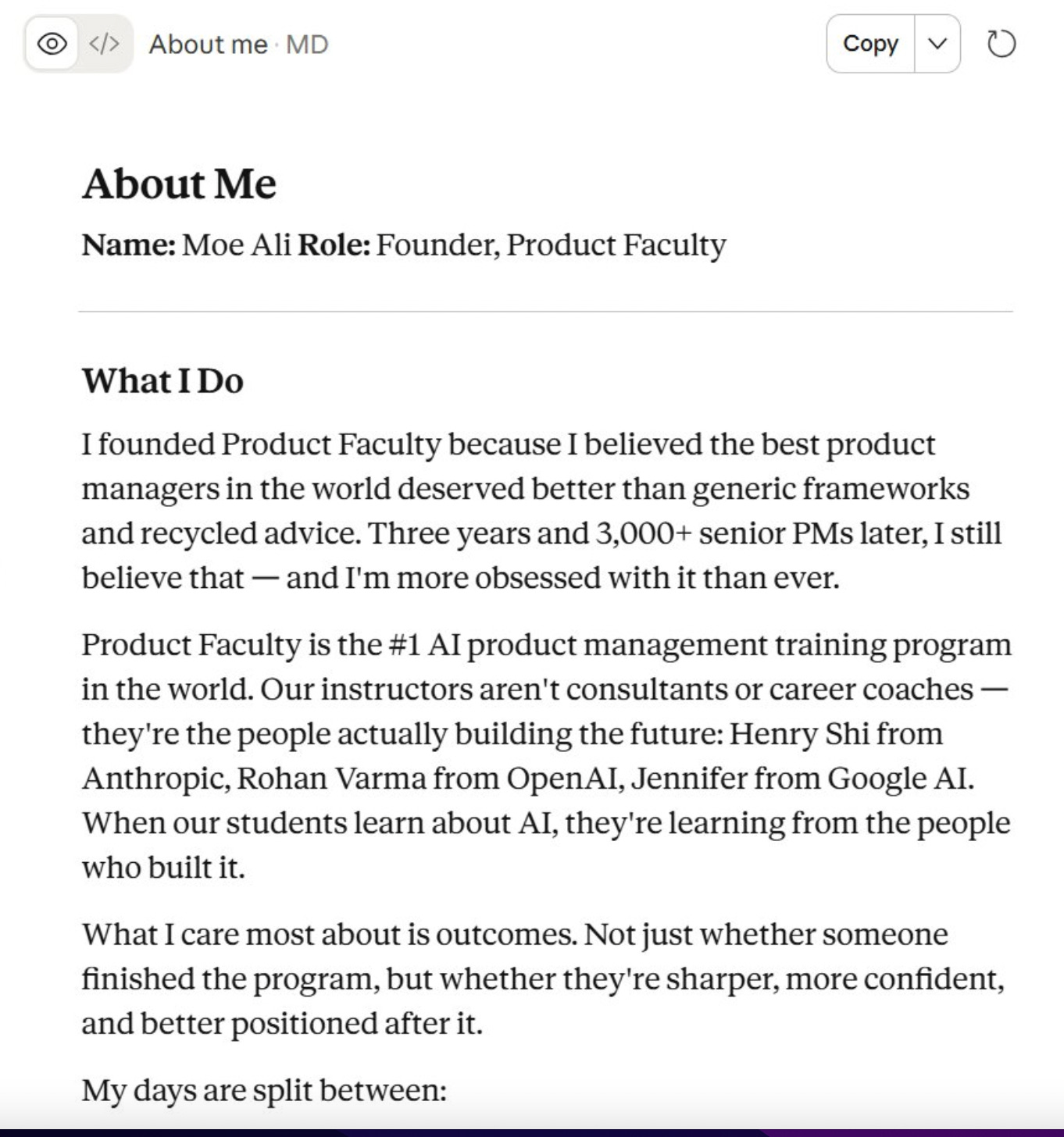
File 1: ABOUT ME/about-me.md
This is your PM voice profile. Cowork reads it before every task and uses it to write in your voice, at your seniority level, for your actual context.
Use this prompt to write it: paste it into Claude chat and answer honestly:
“Interview me to build my PM voice profile. Ask me: my name and role, the product I work on and who uses it, my biggest current priorities, how I like to communicate (bullet points or prose? formal or direct?), who my key stakeholders are and how I think about them, what frameworks I lean on, and what I’d want any smart collaborator to know before working with me.”
Spend 10 minutes on this. It’s the highest-leverage file in your setup.
File 2: ABOUT ME/my-company.md
Your company context. Include:
Company mission and stage (pre-seed, Series A, growth, etc.)
The core user problem you’re solving
Your business model in one sentence
Key competitors and how you differentiate
Your current top 3 bets or roadmap themes
The metrics that actually matter to your team
Don’t overthink it. Two pages is plenty. You’ll update this as things change.
File 3: ABOUT ME/pm-style.md
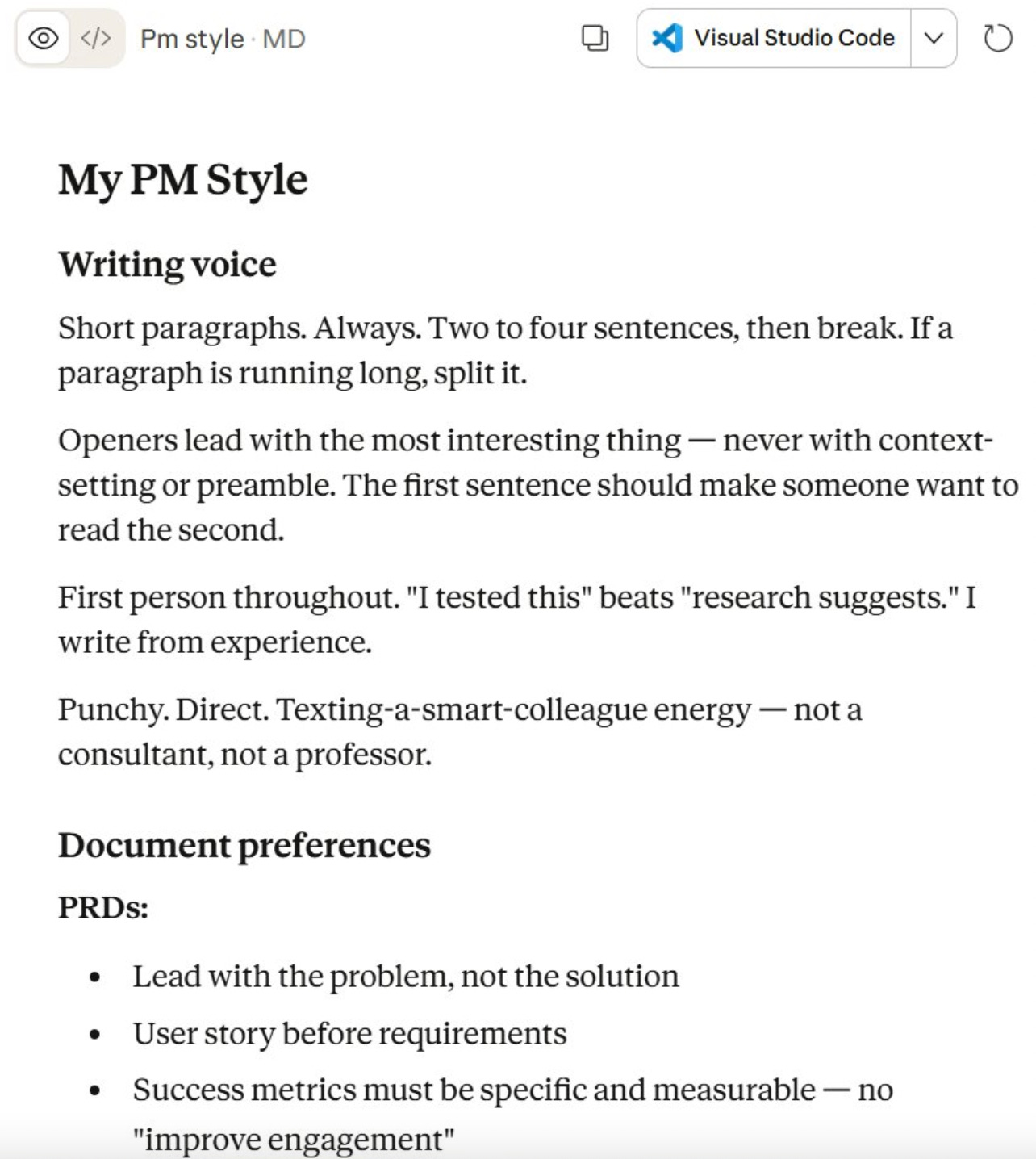
Your working style preferences. This is what stops Cowork from producing outputs you’d never actually send.
Include things like: - PRD format preferences (do you use a specific template? What sections do you always include?) - Communication tone (how do you talk to engineers vs. executives vs. customers?) - Things you always want in a stakeholder update - Frameworks you default to (JTBD? OST? Something else?) - Things you never do — corporate speak, bullet-point-only docs, etc.
Step 3: Add Your Templates
Drop your real working templates into the TEMPLATES/ folder.
Whatever you actually use:
Your PRD template
Your weekly status update template
Your exec briefing format
Your research synthesis structure
If you don’t have templates yet, build them now. Cowork produces dramatically better outputs when it has a real format to follow rather than inventing one.
Step 4: Set Your Global Instructions
This is the step most people skip. Don’t skip it.
In Cowork, open Customize in the sidebar, then Global Instructions. Paste something like this:
“You are my PM chief of staff. Before every task, read ABOUT ME/about-me.md, ABOUT ME/my-company.md, and ABOUT ME/pm-style.md. Always write in my voice. Always use my templates from the TEMPLATES/ folder when producing documents. Save every completed output to OUTPUTS/ with today’s date in the filename. If you’re unsure about something, ask one clarifying question, don’t assume.”
Adjust to your preferences. This is the instruction set Cowork loads before everything else.
The 5 PM Workflows
Here’s where it gets real. These are the five workflows I ran during my 48-hour test. Each one changed how I operate.
Workflow 1: The PM Chief of Staff
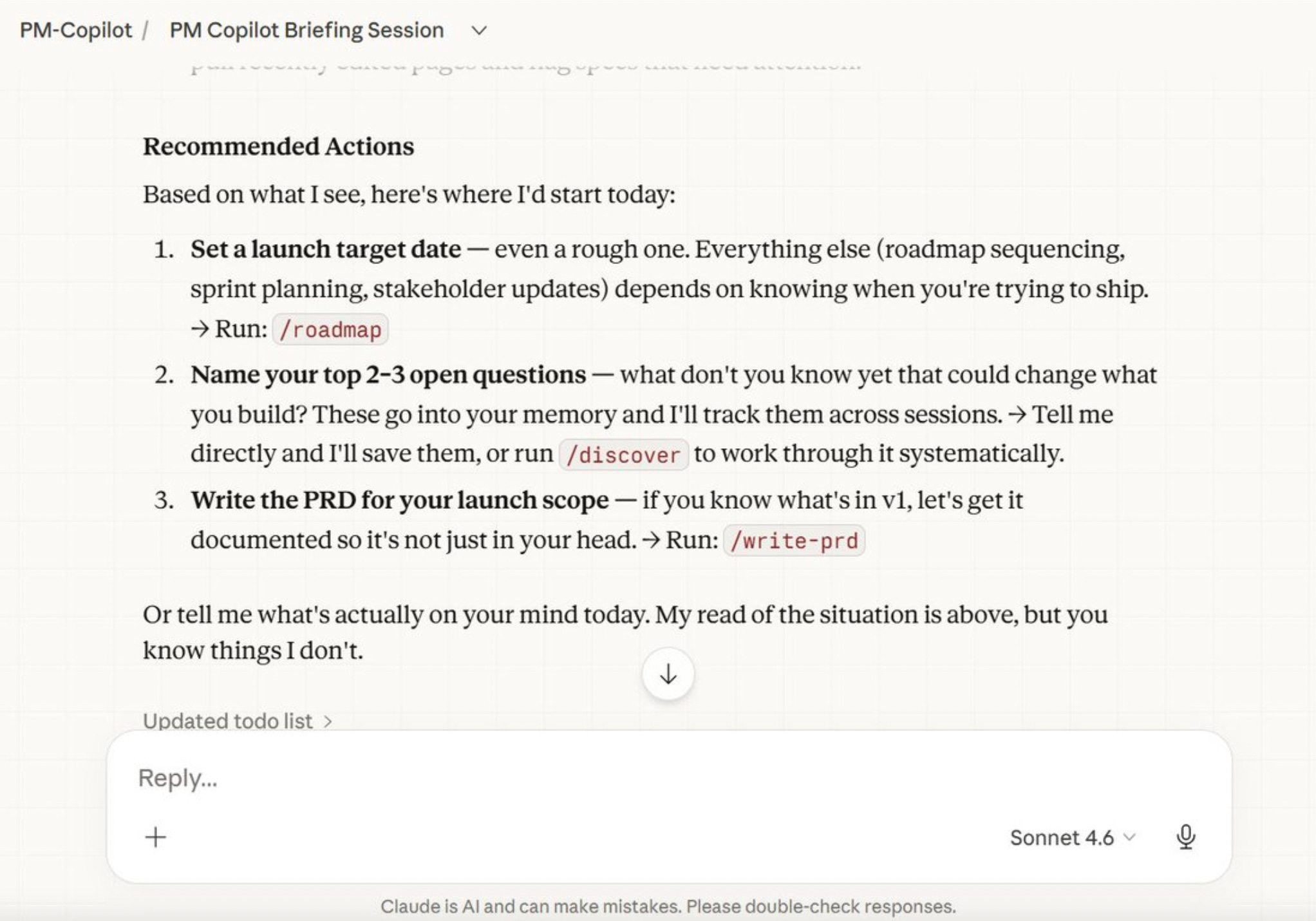
The problem: Every morning starts the same way. Twelve Slack threads. Four Linear tickets updated overnight. Two emails from stakeholders that need responses. You spend the first hour just figuring out what’s on fire before you can do any actual work.
What Cowork does: Reads your calendar, Slack, and email, then gives you a single prioritized briefing: what needs your attention today, what’s at risk, what decisions are waiting on you, and what you can safely ignore.
Setup needed: - about-me.md and my-company.md in ABOUT ME/ - Connect Slack and Google Calendar in Customize → Connectors - Optional: connect Gmail for email context
The prompt:
“Good morning. Read my calendar for today, check my Slack for anything unread or urgent in the last 12 hours, and scan my email for anything requiring a decision or response. Give me a prioritized morning briefing: what’s on fire, what decisions need me today, and where I should focus first. Use my about-me context to calibrate what actually matters.
Workflow 2: The PRD Drafter
The problem: You have a feature idea in your head. It’s mostly formed, maybe 70% there. Getting it into a proper PRD with user stories, success metrics, and scope boundaries takes hours. The blank page is the enemy.
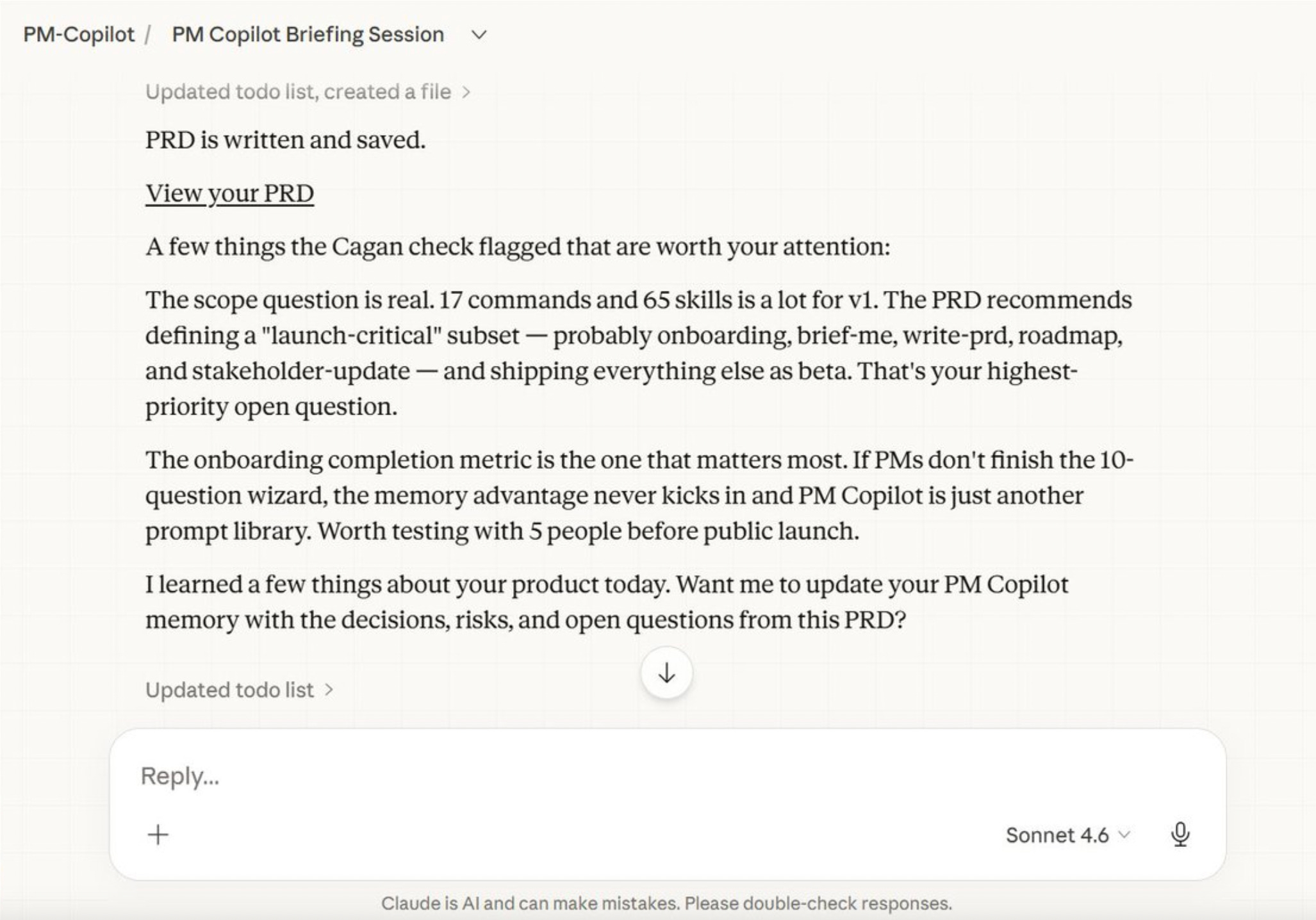
What Cowork does: You speak or type a rough idea. Cowork asks you five clarifying questions. Then it produces a complete PRD using your actual template — in your voice, scoped to your product, with your metric conventions.
Setup needed: - about-me.md and pm-style.md in ABOUT ME/ - Your PRD template in TEMPLATES/ - Your company context in my-company.md
The prompt:
“I have a feature idea I want to turn into a PRD. Before writing anything, ask me five clarifying questions to fully understand the problem, the user, the success criteria, and the scope. Once I’ve answered, produce a complete PRD using the template in TEMPLATES/. Write it in my voice as defined in about-me.md.”
Real output from my test:
I described a notification system idea in three sentences. Cowork asked about user segments, trigger conditions, the existing notification architecture, success metrics, and out-of-scope constraints. I answered in 10 minutes. The PRD draft it produced covered 8 sections and was 90% usable first pass
Workflow 3: The Exec Update Ghostwriter
The problem: Weekly status updates. Monthly board memos. Quarterly business reviews. These take forever to write - not because the content is hard, but because the translation work is hard. Your stakeholders don’t want to hear what you shipped. They want to know if the bet is working.
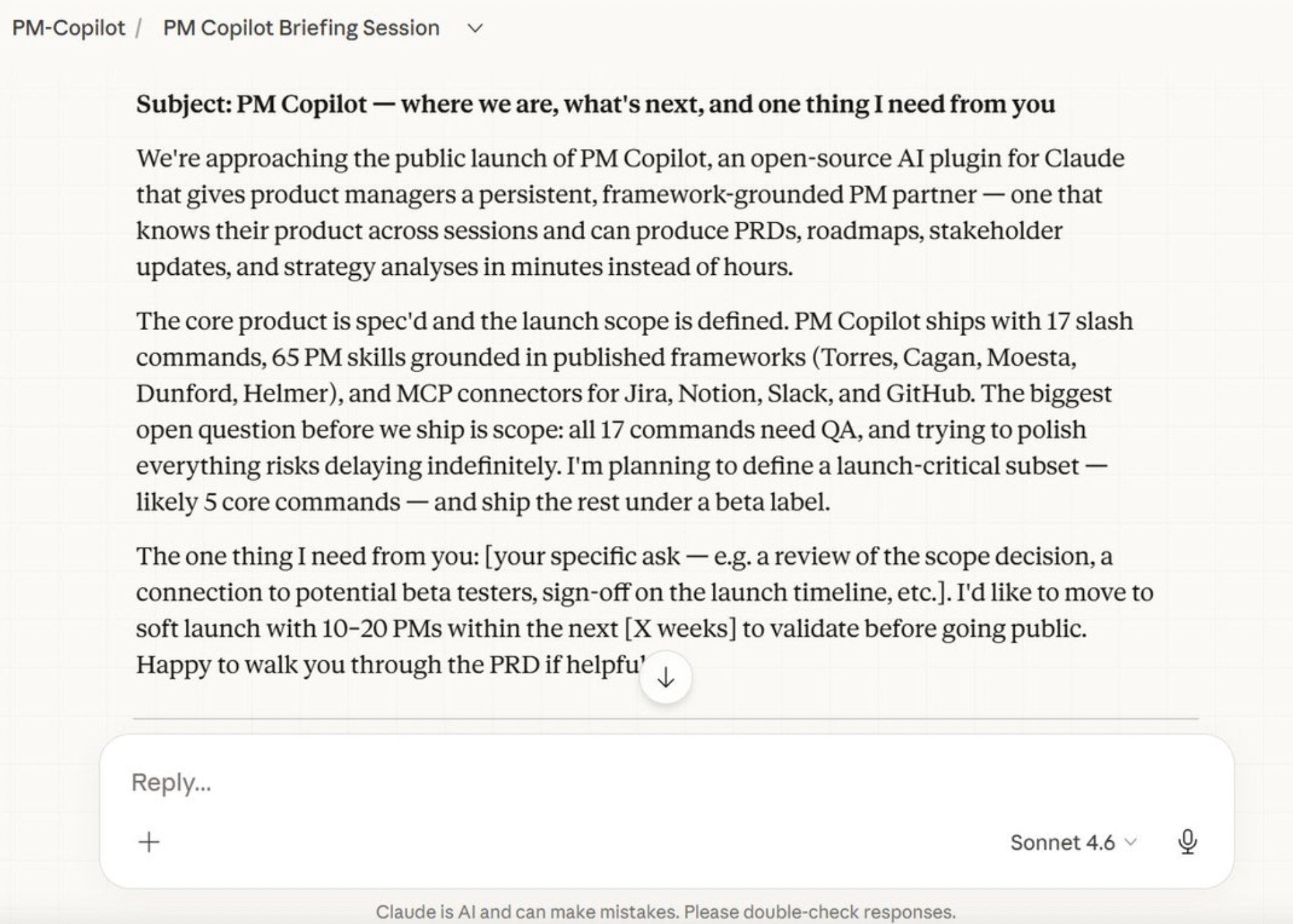
What Cowork does: Knows your voice, your priorities, and your audience. Produces the update, calibrated to the right format and level of detail for whoever’s reading it.
Setup needed: - about-me.md with your communication style - my-company.md with current priorities and metrics - Your exec update template in TEMPLATES/ - Optional: connected Linear or Jira to pull live ticket status
The prompt:
“Write my weekly exec status update for [date]. Use the template in TEMPLATES/exec-update.md. Pull recent context from my-company.md for current priorities. The audience is [CEO/VP/board — pick one]. Write it in my voice as defined in about-me.md. Focus on: what moved, what didn’t and why, what needs a decision, and what’s at risk. Keep it to one page.”
Real output from my test:
I ran this on a Friday at 4:30pm. The update was done in 3 minutes. My VP said it was the most concise status I’d sent in months. I hadn’t changed a word.
Workflow 4: The User Research Synthesizer
The problem: You ran 100 user interviews. You have transcripts. Nobody has time to read 100 transcripts. So you write the synthesis from memory, cherry-pick the quotes you remember, and call it done. The insights you don’t remember don’t make it into the product.
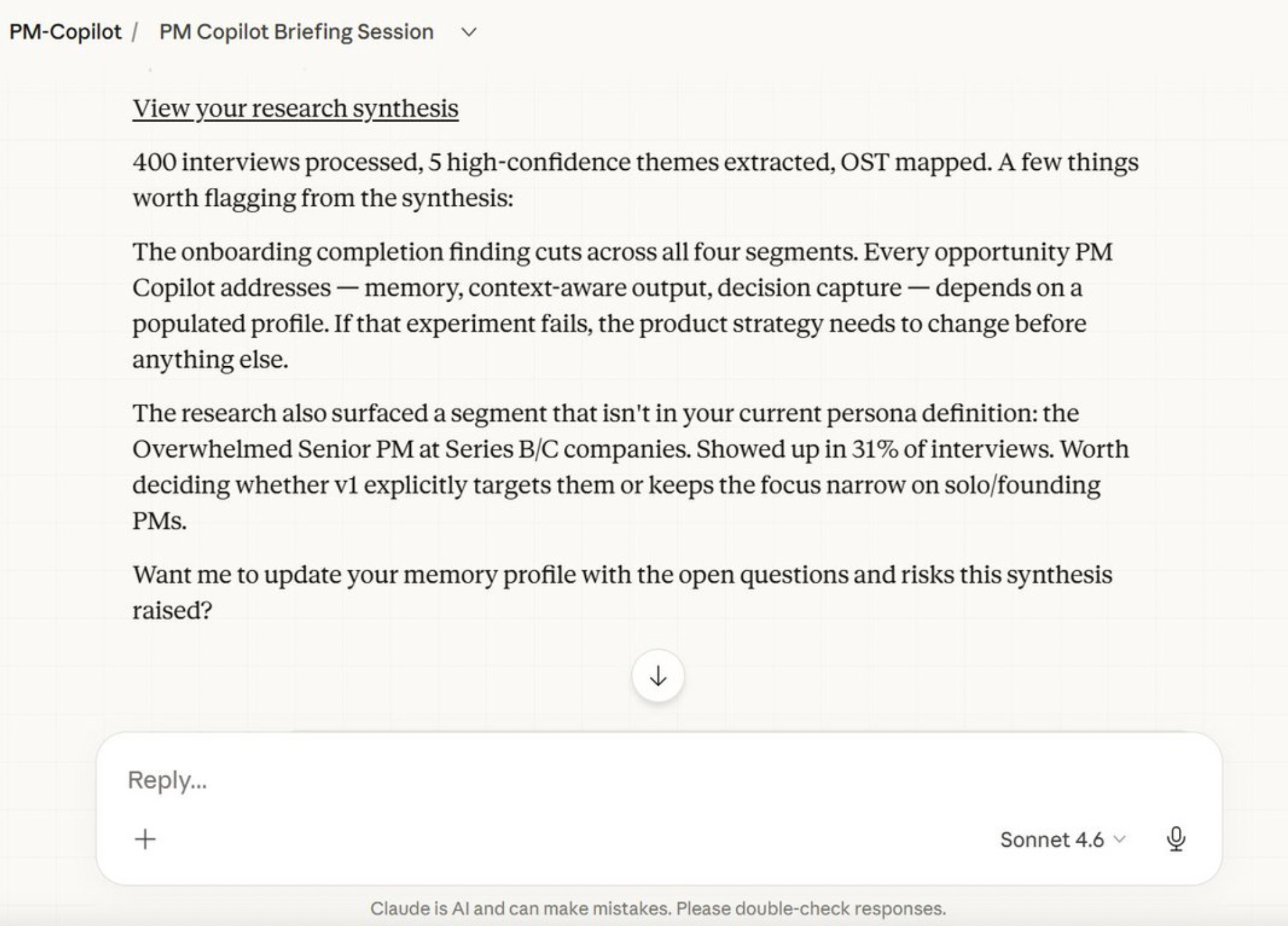
What Cowork does: Reads all 100 transcripts. Extracts recurring themes, tension points, and quote evidence. Produces a structured synthesis with confidence levels and direct quotes organized by theme.
Setup needed: - Interview transcripts in a folder (PDF, txt, or doc format) - A research synthesis template in TEMPLATES/ - my-company.md so Cowork knows what product context to look for
The prompt:
“I have [N] user interview transcripts in [folder path]. Read all of them. Extract: the top 5 recurring themes across interviews, the key tension points or unmet needs, the strongest quotes for each theme, and any signals that contradict the current product direction. Organize your output using the template in TEMPLATES/research-synthesis.md. Flag any themes that appear in 3+ interviews as high-confidence.”
Real output from my test:
I dropped 8 transcripts from recent discovery calls. Cowork identified three themes I had explicitly noted in my own synthesis — and two I’d completely missed. One of them turned out to be the most important finding in the set.
This is the workflow most PMs haven’t tried yet. It’s also the one that makes the biggest difference.
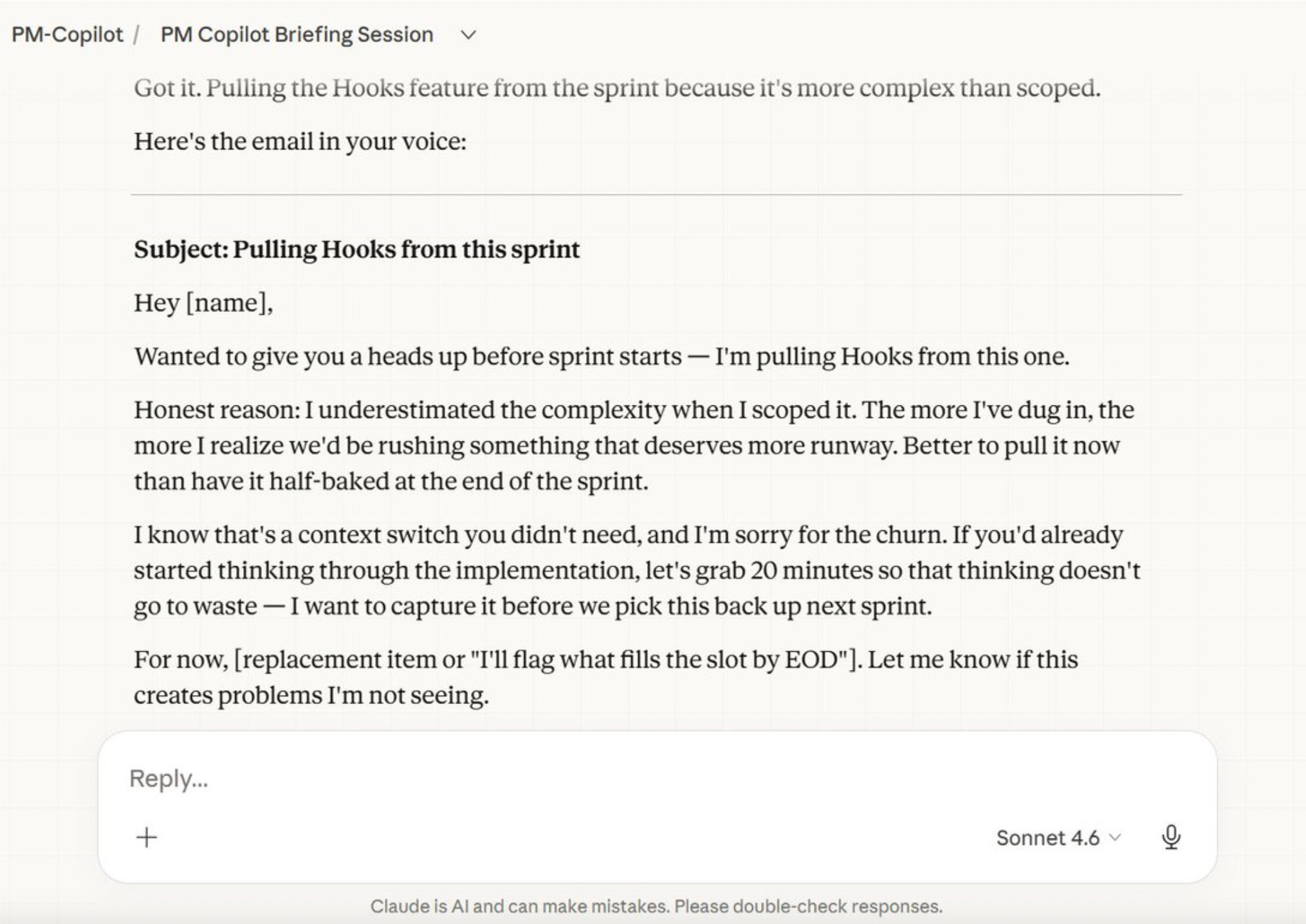
Workflow 5: The Stakeholder Email Machine
The problem: “Write an email to engineering explaining why we’re pulling feature X from the sprint.” You know what you want to say. You just don’t want to write it.
What Cowork does: Uses your voice, your history with that team, and your communication style to draft an email that sounds like you: specific, direct, respectful of the engineering relationship.
Setup needed: - about-me.md with how you talk to engineering - pm-style.md with your communication preferences - Optional: context on the specific situation in the prompt
The prompt:
“Write an email to my engineering lead explaining that we’re pulling [feature name] from the current sprint. The reason is [reason — be honest]. The goal is to explain the decision clearly, acknowledge the context-switch cost, and keep the relationship intact. Write it in my voice. Keep it under 200 words. No corporate language.”
What would have taken me 20 minutes of staring at a draft took 45 seconds. I edited two sentences. Sent it.
This is the quick win. It’s also the one that gets people to share the article.
Common PM Mistakes
I made all three of these in my first week. Don’t repeat them.
Mistake 1: Vague about-me files. “I’m a PM who cares about users” tells Cowork nothing. The more specific you are: actual stakeholder names, real framework preferences, the tone you use with your CEO versus your engineers, the better every output gets. Spend 20 minutes on this file. It compounds.
Mistake 2: Not using templates. Cowork will invent a format if you don’t give it one. Sometimes that’s fine. Usually it’s not. If you have a PRD structure your team expects, a status update format your exec prefers, or a research synthesis layout that actually gets read... put it in TEMPLATES/. Cowork will use it exactly.
Mistake 3: Running Cowork like ChatGPT. Sending one-line prompts and expecting magic. Cowork is a chief of staff, not a search engine. Give it context. Tell it the audience. Tell it the goal. Tell it what not to do. The prompt templates in this article are a starting point: steal them, then make them yours.
Your First Task
Don’t build the whole system tonight. That’s how you end up with a folder structure and no actual work done.
Pick one workflow. The one with the highest pain level right now.
If it’s the morning briefing: create about-me.md, connect Slack and Calendar, run the Chief of Staff prompt tomorrow morning.
If it’s the PRD: create about-me.md and drop your template in TEMPLATES/, then run the PRD prompt on the idea that’s been sitting in your head.
One file. One workflow. Tomorrow morning.
The rest of the system builds itself once you see it work.